PokeBonk Controls: Keyboard, Controller & Touch
Current source scope: Beta v0.7.3 · Checked October 19, 2026
THE QUICK ANSWER
The current keyboard defaults use WASD or arrows to move, Space to jump, Shift to slide, E to interact and R for the Ultimate. Settings → Controls supports rebinding; Patch #7 saves those changes across reloads. Touch and controller prompts are separate input modes.
In these notes
Default keyboard and mouse controlsController and touch differencesRebind a control and check the resultWhen input seems unresponsiveSources and version scope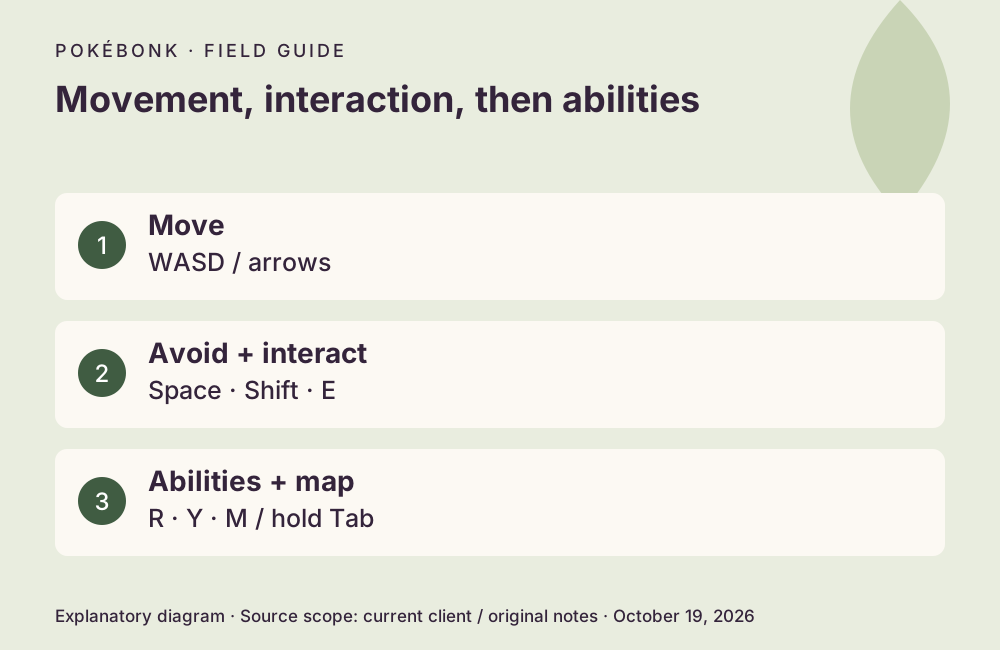
Default keyboard and mouse controls
The current bindings in your own Controls screen take precedence if you have remapped anything. Space can also confirm menu choices; the patch notes address accidental confirmations during upgrades. In a level-up or item dialog, Tab can mean View my team rather than the run’s held-map shortcut.
| Action | Default | Context |
|---|---|---|
| Move | WASD / arrow keys | During a run |
| Jump / slide | Space / Shift | During a run |
| Interact | E | Near an available interaction |
| Ultimate | R | When charged |
| Target lock | Right mouse button | Prioritizes bosses and Alphas; repeat to cycle targets |
| Auto / manual aim | Q | Aim mode |
| Auto-run | T | Movement toggle |
| Auto-Ultimate | Y | Patch #7 toggle |
| Big map | M; hold Tab | Hold Tab checks the map without pausing |
| Pause | Esc or P | During a run |
| Choose an item from a paid Poké Ball | 1 / 2 / 3 | When its three-item offer is open |
Controller and touch differences
The project’s controller announcement assigns A to jump, B to slide, X to interact, Y to Ultimate, Start to pause and Select to the map. These are controller labels, not the keyboard Y auto-Ultimate toggle. Hardware labels and remapped prompts can differ. Patch #7 adds a gamepad dead-zone setting.
Touch mode uses on-screen movement and camera controls rather than requiring a physical keyboard. Choose the input style under Settings → Controls if automatic detection is wrong. Tap the minimap to inspect the big map. On mobile, the Android back gesture now pauses according to Patch #7; read touch and display guidance before relying on a particular layout.
Rebind a control and check the result
Patch #7 says remaps now persist across reloads. If an old binding returns, record the displayed version and both affected actions before reporting it. Do not delete your save to reset a key mapping.
- Open Settings → Controls and select the keyboard/mouse or touch input style that matches your setup.
- Select the action to change, then press the intended replacement input. Mouse buttons are supported by the current patch.
- If that input already belongs to another action, check both resulting bindings: conflicts can swap actions. Press Esc to cancel a capture.
- Return to play and verify the affected action in a safe context. Use Reset to restore defaults if the mapping is confusing.
When input seems unresponsive
First check whether a menu, browser shortcut or unfocused game tab is consuming the input. Distinguish movement delay from a low frame rate with the symptom table. A missing interaction prompt can also mean you are not in range or the interaction is unavailable; rebinding E will not unlock it.
The current patch lists Firefox WASD fixes and target-lock cycling changes. Those notes explain differences from older recordings. Read the update summary if an old tutorial’s prompt no longer matches the game.
Sources and version scope
This independent guide uses the original project’s menu text, current client definitions and dated announcements. Menus were inspected; no run, purchase, reward claim or account recovery was played through for this guide.
- Original English entry — v0.7.3, entry and menu observations checked October 19, 2026.
- Original news feed — Patch #7 and earlier mechanic changes; roadmap statements retain their announced scope.
- Current roster and upgrade definitions and client rules — exact definitions, not a claim about every server outcome.
Source-check dates are separate from publication dates. This page is part of a local preview. Read the source and artwork approach.