
PokeBonk Meowth Shop: Purchases, Stock & Currency
Current source scope: Beta v0.7.3 · Checked October 19, 2026
THE QUICK ANSWER
At Meowth’s shop, compare the displayed offer, PokéDollar balance and current item count before buying. Patch #7 makes restock costs grow across the whole run, not reset each zone, and adds a surcharge when buying many Poké Balls without opening them. Read the live price rather than relying on an old flat-price route.
In these notes
Reach Meowth and read the current offerCheck a purchase before confirming itRestocks and Poké Ball surcharge changedWhen the offer you want is unavailableSources and version scope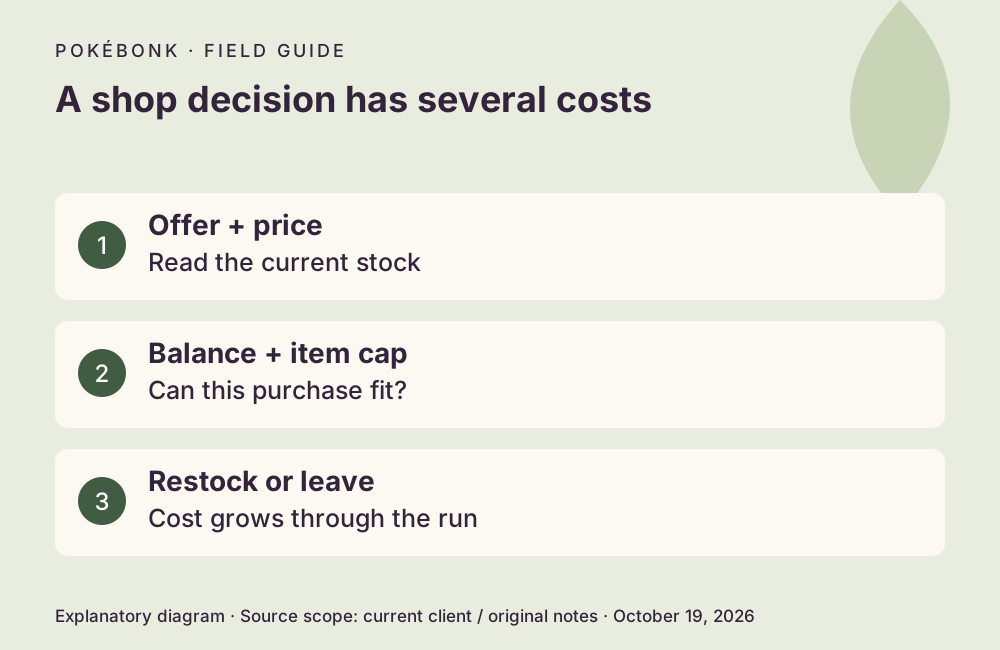
Reach Meowth and read the current offer
Meowth is an in-run merchant interaction, not the Lab’s permanent upgrade menu. Approach the merchant and press the interaction key (E by default) or the matching touch/controller prompt. The current map-help text says he leaves after a while, so an old sighting is not a permanent shop location. No fixed spawn coordinates or exact departure timer was verified. Use the map and minimap to navigate the actual run.
The merchant uses PokéDollars for run purchases. Stardust in the Lab serves a different preparation system. Before accepting, read the offer’s displayed price, description and your balance; do not infer a permanent unlock from an in-run purchase.
Check a purchase before confirming it
A damage item with a cap of one cannot be treated like a ten-stack common item. The catalog supplies current effects and caps; your live stock determines what can actually be bought. A disabled action can reflect price, capacity or stock rather than a broken connection.
- Read the item’s effect and compare its current count with its stack cap.
- Check the displayed PokéDollar price against your balance. If it is a Poké Ball purchase, account for the current surcharge.
- Confirm only the offer you intend to buy. For a paid item Poké Ball, the current patch presents three item choices, with keyboard shortcuts 1–3; selling is also supported.
- Check that the selected item/count and currency change match the transaction before spending again.
Restocks and Poké Ball surcharge changed
Patch #7 says restock cost increases across the entire run. Moving to another zone does not reset that cost. Budget for the price shown now rather than applying a fresh-zone price from an older beta guide.
The same patch describes a surcharge for buying many Poké Balls without opening them. Initial purchases are unaffected, and opening balls expands the allowance. The announcement does not justify quoting one universal threshold, price formula or fixed purchase order for every state. Opening and resolving existing balls can matter before another purchase.
When the offer you want is unavailable
Check whether the item is unlocked in your Lab pool or deliberately Archived; Archive excludes items from both Poké Ball and shop offers. Then check current stock, balance and the item’s cap. Restocking changes the offer at a growing cost, so it is a tradeoff rather than a guaranteed way to force a particular item.
Use the build checklist to decide whether a compatible alternative solves the current run’s problem. If the interface reports a connection failure after a transaction, preserve the session and record the item, price, balance and error for support diagnosis. No purchase was performed for this guide.
Sources and version scope
This independent guide uses the original project’s menu text, current client definitions and dated announcements. Menus were inspected; no run, purchase, reward claim or account recovery was played through for this guide.
- Original English entry — v0.7.3, entry and menu observations checked October 19, 2026.
- Original news feed — Patch #7 and earlier mechanic changes; roadmap statements retain their announced scope.
- Current roster and upgrade definitions and client rules — exact definitions, not a claim about every server outcome.
Source-check dates are separate from publication dates. This page is part of a local preview. Read the source and artwork approach.